




Sometimes you need someone else to help manage a trading account, but you don’t want to hand over passwords or full control. That’s exactly where Shared Access in cTrader comes in.
This feature lets you safely share trading access with another person so they can place and manage trades, while you remain the account owner with full control.
Access can be added or removed at any time, and deposits or withdrawals always stay under your authority.
Shared Access in cTrader lets you allow another person to trade on your account without giving them your login details. The invited user can place, manage, and close trades, but they do not become the account owner, and they cannot deposit, withdraw, or take control of your funds. You always stay in charge, and you can remove access whenever you want.
In practice, it’s a simple way to let a portfolio manager, trading partner, IB, or assistant help with execution while keeping ownership, security, and authority fully with you.
Before you share your account, it helps to pause for a moment and make sure everything is set correctly. First, double-check you’re on the right trading account inside cTrader, because Shared Access applies to the account you currently have selected. You’ll also need the person’s email or cTrader nickname to send access.
It’s also smart to agree on expectations in advance. Decide what kind of trading they’ll do, what level of risk is acceptable, and how you’ll communicate.
Finally, remember that you can remove access at any time, so if something doesn’t look right, you’re always in control.
Sharing access works almost the same across the web, desktop, and mobile. The main idea is simple: open the Shared Access section, add the person’s email or cTrader nickname, confirm, and the access becomes active. Below are the platform-specific flows in a clean structure.
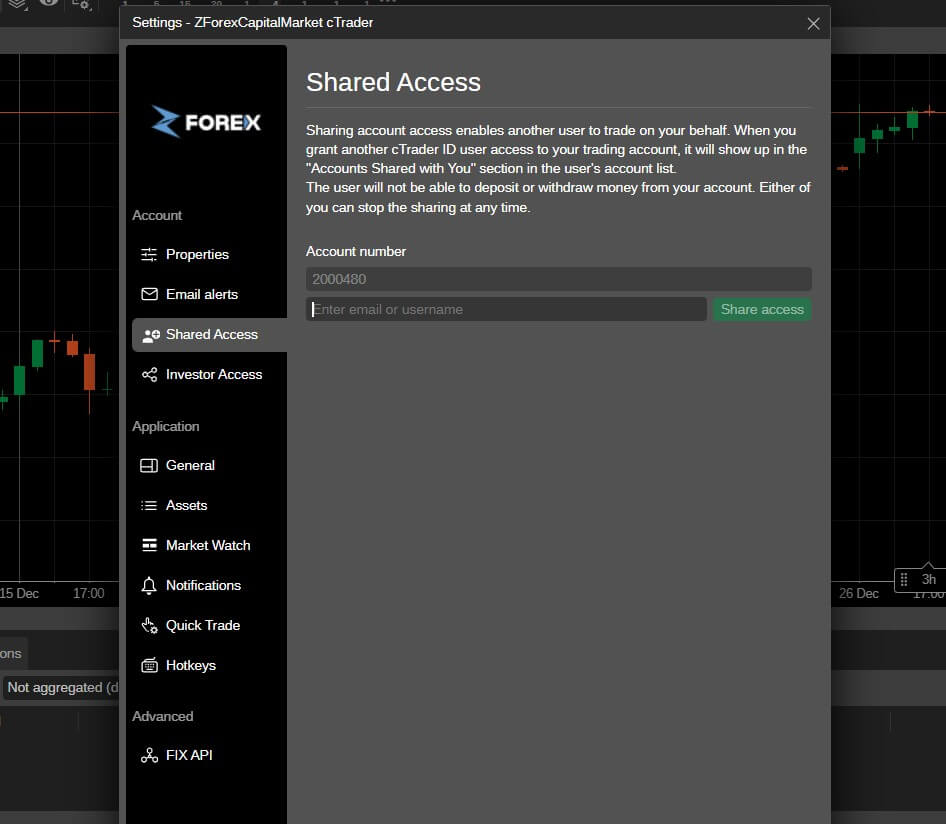
After this, the invited user will see your account under their shared accounts list and can trade on it.
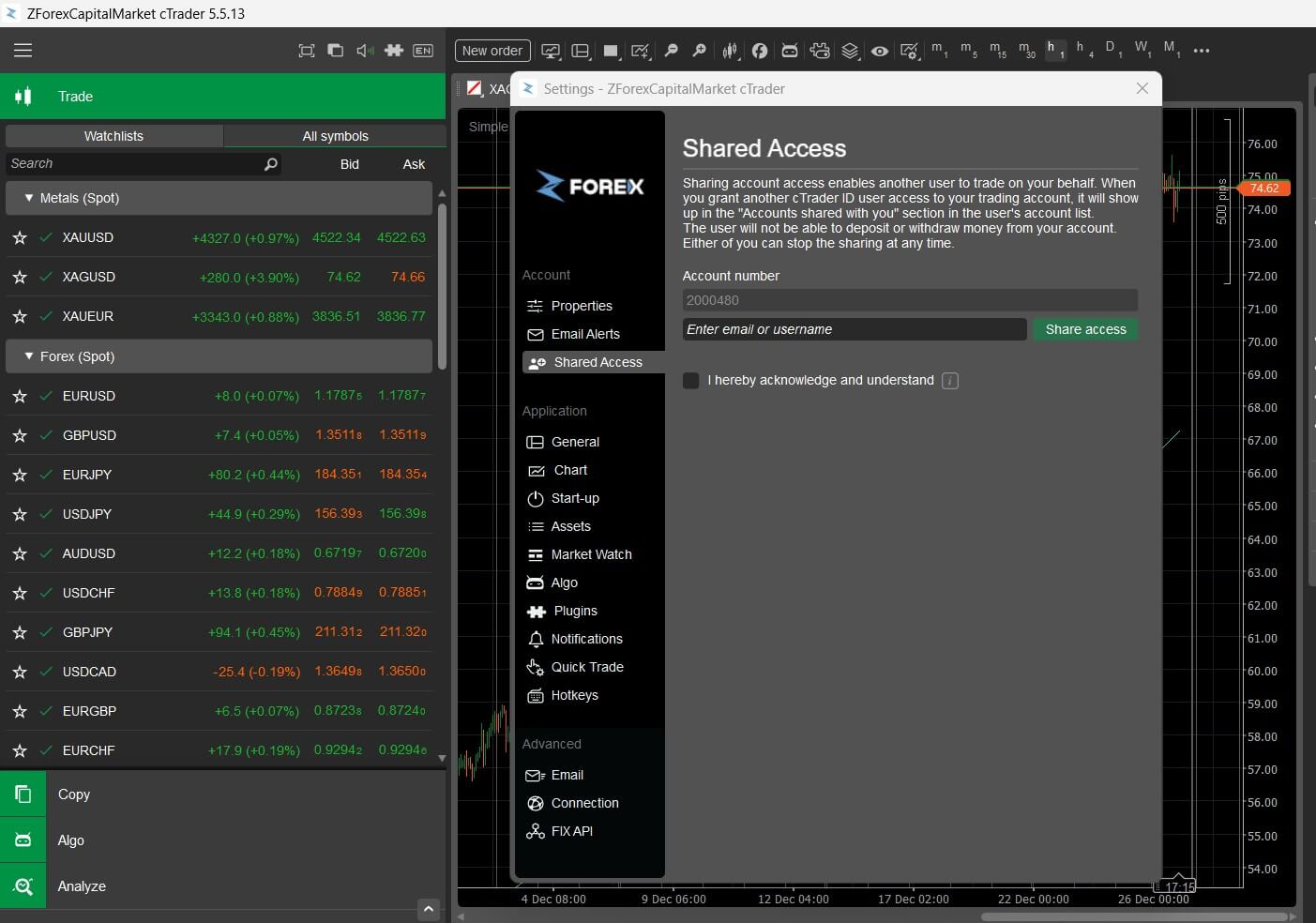
The shared account appears instantly on the other user’s platform. You can revoke access anytime from the same menu.

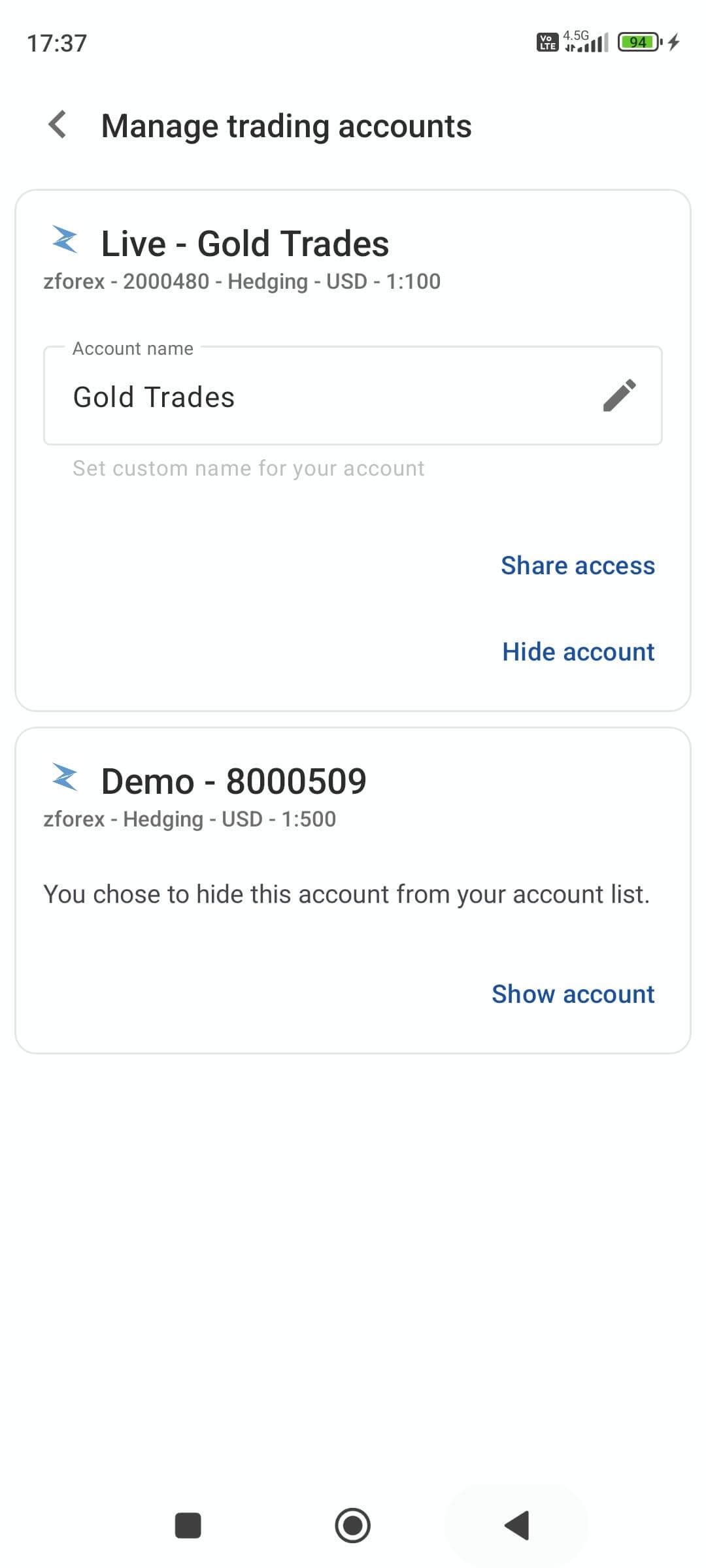
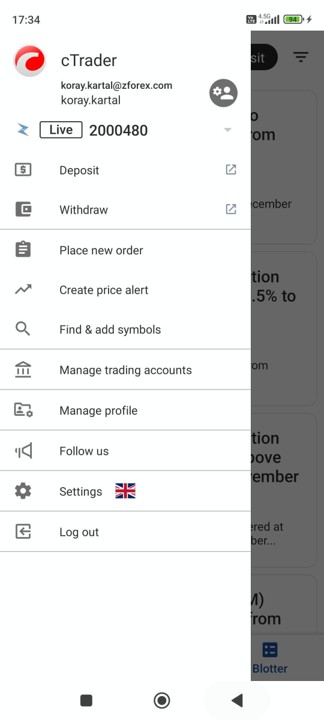
The invited user can trade immediately, and you can also revoke or reject access directly from the app.
Shared Access is flexible, and control always stays with the account owner. If you ever want to stop sharing, you can remove access instantly on all channels. Just go back to the Shared Access section (or Manage Trading Accounts on mobile), find the shared user, and revoke their access. The removal is immediate, and the other person will no longer be able to trade on your account.
On the other hand, if you are the manager and someone shares an account with you, but you don’t want to manage it, you can simply decline or remove it from your shared accounts list.
For the person who receives access, shared accounts don’t mix randomly with their own accounts. Instead, they appear in a separate shared accounts section inside cTrader.
From there, the manager can:
The manager doesn’t gain ownership or financial control. They simply get trading access in a clean, structured way, with clear separation so there is no confusion about which account they’re trading on.
Even though Shared Access is simple, a few situations come up quite often. Here are the most common ones and how to handle them quickly.
“Shared Access isn’t showing on my platform.”
This is usually a version or platform issue.
→ Try cTrader Web or update your desktop/mobile app to the latest version.
“I shared the wrong account by mistake.”
Shared Access applies to the account you have selected.
→ Revoke access, switch to the correct account, and share again.
“The manager says they can’t see my account.”
Most of the time, it’s because the wrong email/nickname was entered or the invite hasn’t refreshed yet.
→ Double-check the details and ask them to re-login or refresh.
“Can the manager deposit or withdraw?”
No. Only the account owner can handle funds.
→ If someone expects financial control, clarify that Shared Access is trading only.
“Can I remove access instantly if something feels wrong?”
Yes.
→ Go to Shared Access or account management, revoke access, and it stops immediately.
Is Shared Access the same as giving someone my login details?
No. Shared Access permits trading only. You stay the account owner and can revoke access anytime.
Can the manager deposit or withdraw money from my account?
No. Deposits, withdrawals, and full account control always stay with the owner.
How does the manager find the shared account?
It appears in a separate shared accounts section inside their cTrader platform.
Can I revoke access instantly if needed?
Yes. Go to Shared Access (or account management on mobile) and remove access immediately.
Can I share access from mobile, or only on desktop and web?
You can share, manage, and revoke access on the web, desktop, and mobile.
Sign up in seconds for free, access your platform, and start trading with ease.

 $200 Oil Scenario: The Chain Reaction Across Markets
What happens if oil hits $200? See the impact on global markets, sectors, inflation, and which industries could win or lose.
Detail Biggest Manipulations in Financial Market History
Financial markets have seen their share of manipulation over the years. Here are seven of the biggest cases in modern history.
Detail Petrodollar System: Why It Still Matters
Energy markets depend on supply routes, currency systems, and trade infrastructure determine prices, inflation, and financial stability across the global economy.
DetailThen Join Our Telegram Channel and Subscribe Our Trading Signals Newsletter for Free!
Join Us On Telegram!


