




QuickTrade is one of the most useful features in cTrader for traders who want extra agility. Instead of opening the full order ticket every time, it lets you place trades directly from the chart with just one or two clicks.
This feature is especially helpful for scalpers, day traders, or anyone trading actively in the markets.
In this article, we’ll walk through what QuickTrade is, how to enable it, when to use it, and a few practical tips to help you trade faster while staying in control.
QuickTrade is a built-in cTrader feature that allows you to place trades directly from the chart, without opening the full order ticket. Instead of going through several steps, you can enter the market instantly using Buy / Sell buttons placed right on your trading screen.
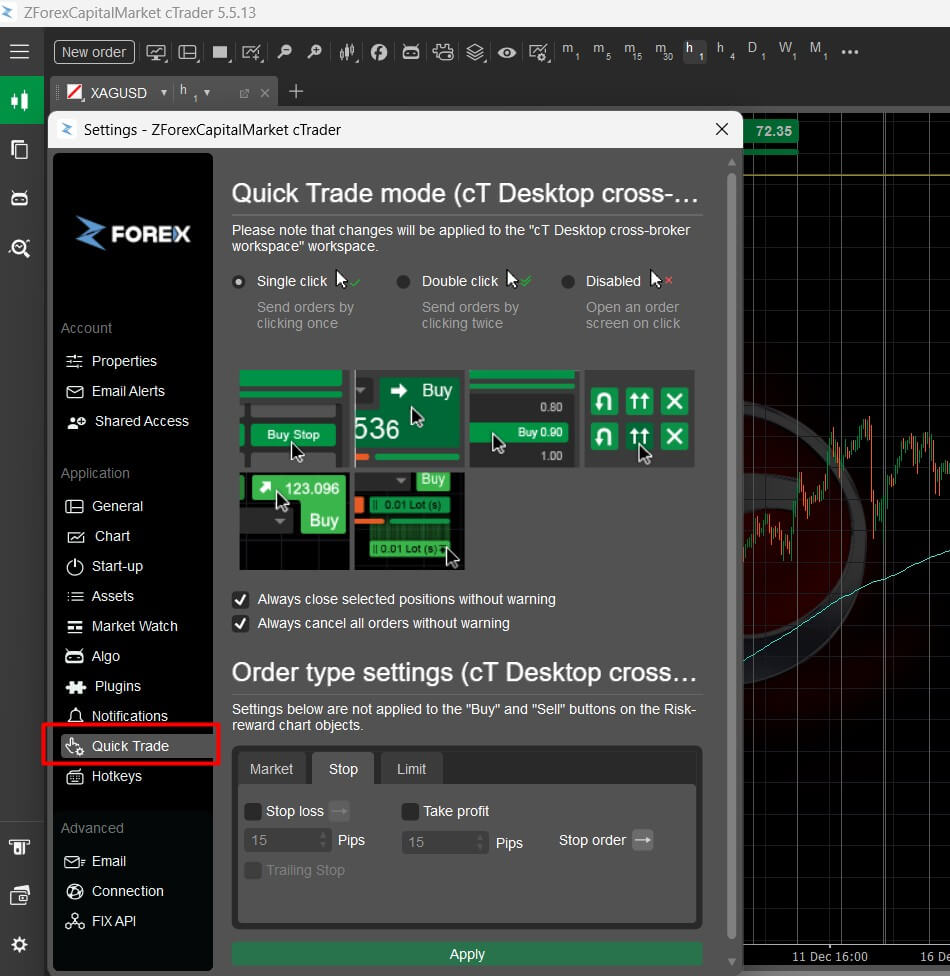
When enabled, you can:
Think of it as a shortcut execution tool. It doesn’t replace the standard order ticket completely; it simply gives you a faster alternative.
Many traders still use the full order ticket when they need detailed control (like precise SL/TP setup, volume tweaks, or advanced order types), but QuickTrade is ideal when your priority is speed.
Once QuickTrade is enabled, you can place trades directly from the chart in a much faster and more intuitive way. Market orders execute instantly, while pending orders can be set at precise price levels; all without switching screens or leaving the chart.
Market orders are the fastest way to enter a position using QuickTrade.
When QuickTrade is active, you’ll see Buy and Sell buttons near the chart or in the trading panel. Depending on your selected mode (single-click or double-click), pressing these buttons will immediately execute a trade at the current market price.
Why traders use it:
If you need to change volume or basic settings, you can adjust them before clicking, so every trade uses your preferred size.
QuickTrade also makes pending orders faster and more visual. Instead of opening menus and selecting order types, you can place them directly where you want on the chart.
A simple workflow most traders use:
This makes pending entries feel natural. You simply click the area where you'd like price to reach, and cTrader sets up the order there. It’s especially useful for:
You can later drag, adjust, or cancel these orders visually, which keeps your trading workflow clean and fast.
QuickTrade helps you enter the market faster, as well as enabling you to manage open trades directly from the chart, without constantly opening menus or switching panels. You can modify levels visually, react quicker during volatility, and stay focused on price action without breaking your workflow.
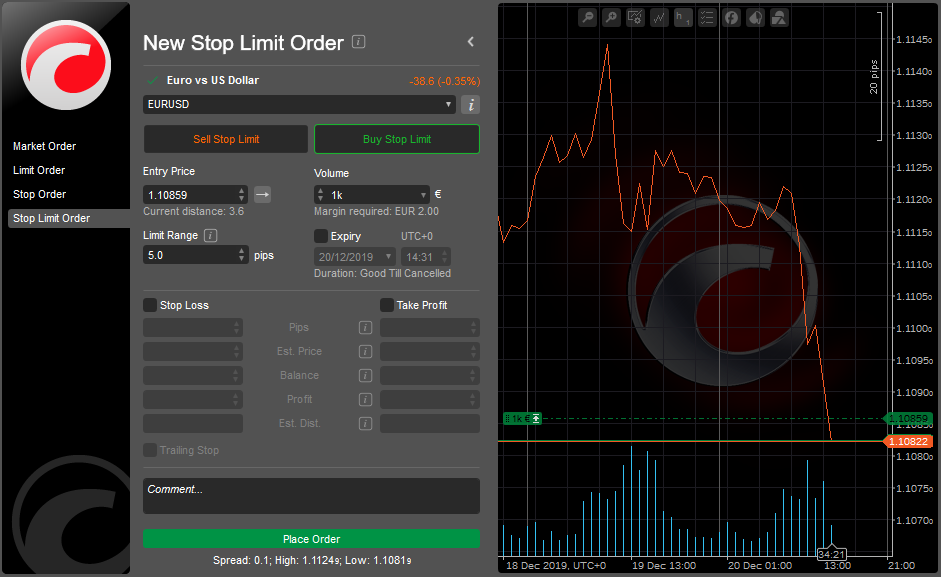
Once a trade or pending order is placed, you can adjust it visually:
Depending on your cTrader setup, you can:
QuickTrade helps you:
All of this happens without leaving the chart environment, which keeps your workflow clean and focused.
QuickTrade is a powerful feature, but it should be configured carefully. cTrader gives you several settings to control how fast execution behaves, how much protection you want before an order is placed, and which trading mode suits your style.
It’s recommended to set these up correctly.
QuickTrade allows two execution styles:
If you’re new to QuickTrade or worried about accidental clicks, start with double-click. You can switch to single-click later when you’re comfortable with the speed.
Before using it actively, make sure your default lot size matches your risk routine. So, you can prevent oversized trades when markets are moving fast.
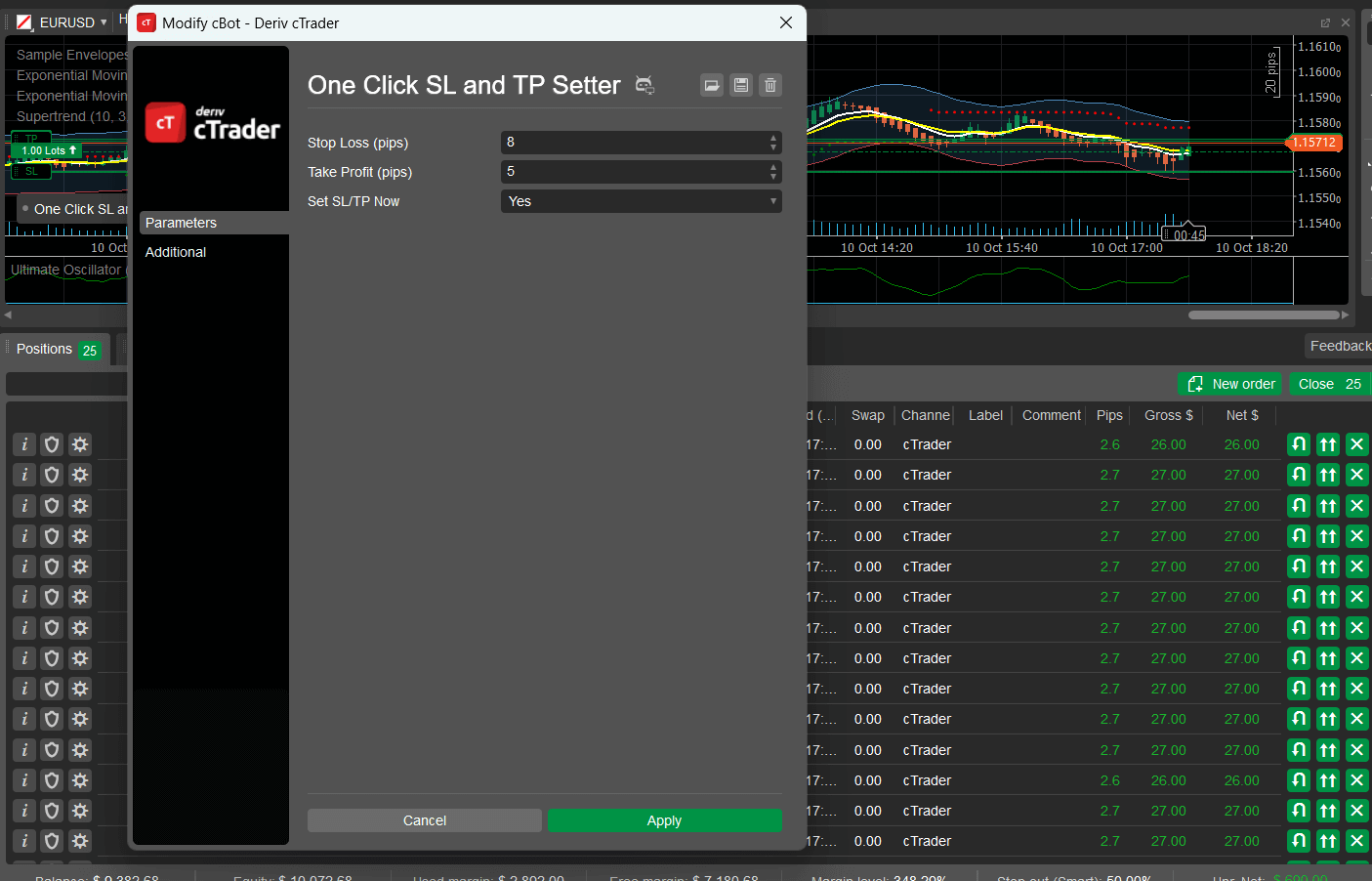
Even with fast execution, discipline still matters.
Good habits include:
QuickTrade adds speed, but it works best when paired with simple rules to keep your trades controlled and consistent.
Is QuickTrade safe to use for beginners?
Yes, but it’s best to start with double-click mode so trades aren’t placed accidentally. Once you’re comfortable, you can switch to faster single-click trading.
Does QuickTrade work on both cTrader Desktop and Web?
Yes. QuickTrade is available on both platforms, and the interface works similarly, although some layout elements may look slightly different.
Can I still use Stop Loss and Take Profit with QuickTrade?
Absolutely. You can set defaults before trading, then adjust SL/TP directly on the chart by dragging the lines to your preferred levels.
Is QuickTrade useful for scalping?
Very much so. QuickTrade is designed for fast execution, making it ideal for scalpers and active intraday traders who need to react quickly.
Can I disable QuickTrade anytime?
Yes. You can turn QuickTrade on or off instantly in platform settings or from the chart interface, depending on your setup.
What happens if I misclick while using QuickTrade?
If you’re in single-click mode, the trade executes immediately. That’s why beginners should start with double-click mode to avoid mistakes.
Do I still need the full order ticket if I have QuickTrade?
Sometimes. Use QuickTrade for speed. Use the full ticket when you need detailed control or more advanced order setup.
Sign up in seconds for free, access your platform, and start trading with ease.

 $200 Oil Scenario: The Chain Reaction Across Markets
What happens if oil hits $200? See the impact on global markets, sectors, inflation, and which industries could win or lose.
Detail Biggest Manipulations in Financial Market History
Financial markets have seen their share of manipulation over the years. Here are seven of the biggest cases in modern history.
Detail Petrodollar System: Why It Still Matters
Energy markets depend on supply routes, currency systems, and trade infrastructure determine prices, inflation, and financial stability across the global economy.
DetailThen Join Our Telegram Channel and Subscribe Our Trading Signals Newsletter for Free!
Join Us On Telegram!


