




Most traders use cTrader daily but overlook simple shortcuts that make the platform faster and easier to work with. A few small tweaks can help you move between charts quicker, manage drawings better, and place trades with less effort.
This guide highlights 15 practical shortcuts and settings that upgrade your cTrader experience. Start by watching the video below. If you haven’t tried it yet, download cTrader and try each step as you go.
Many traders still navigate cTrader by clicking through tabs and menus, which slows everything down. These simple shortcuts help you move around the platform much faster.
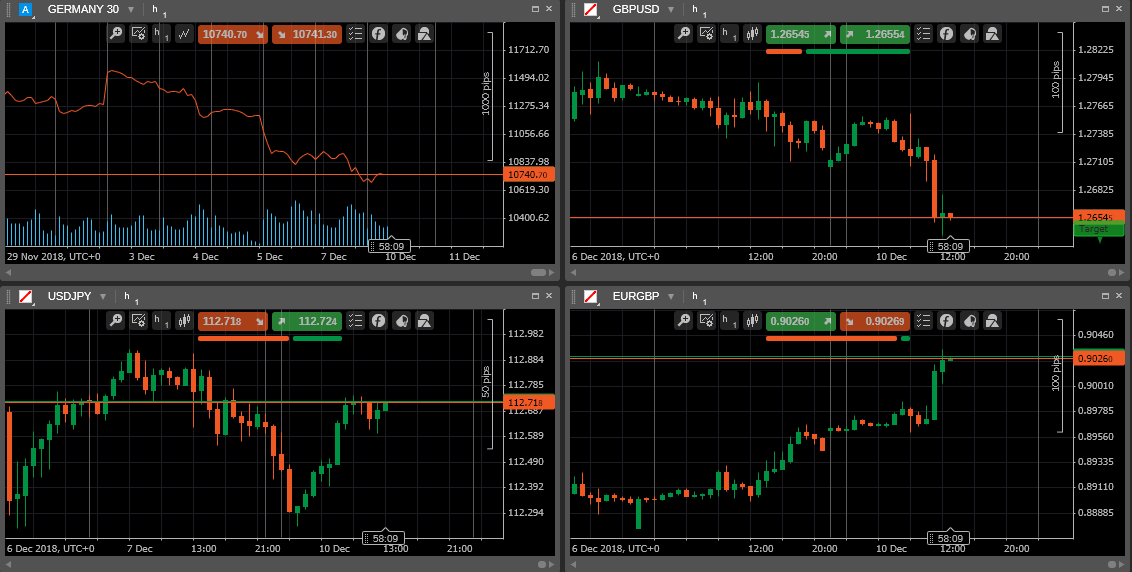
Instead of clicking chart tabs one by one, hold Ctrl + Tab to cycle through your open charts. This is especially useful when scanning your watchlist before a session starts.
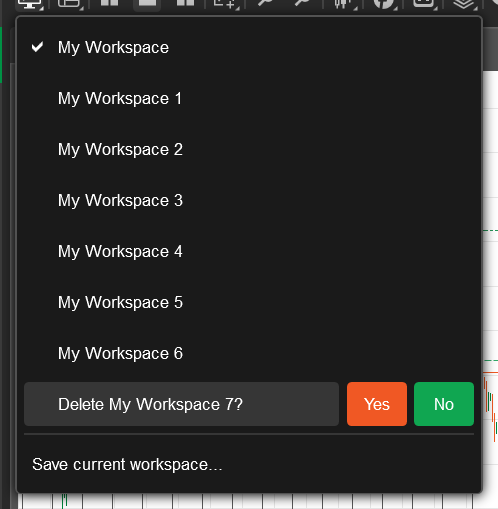
If you use different workspaces for FX, Gold, indices or different strategies, you can switch between them in seconds.
This way you can keep your workspace more organized.
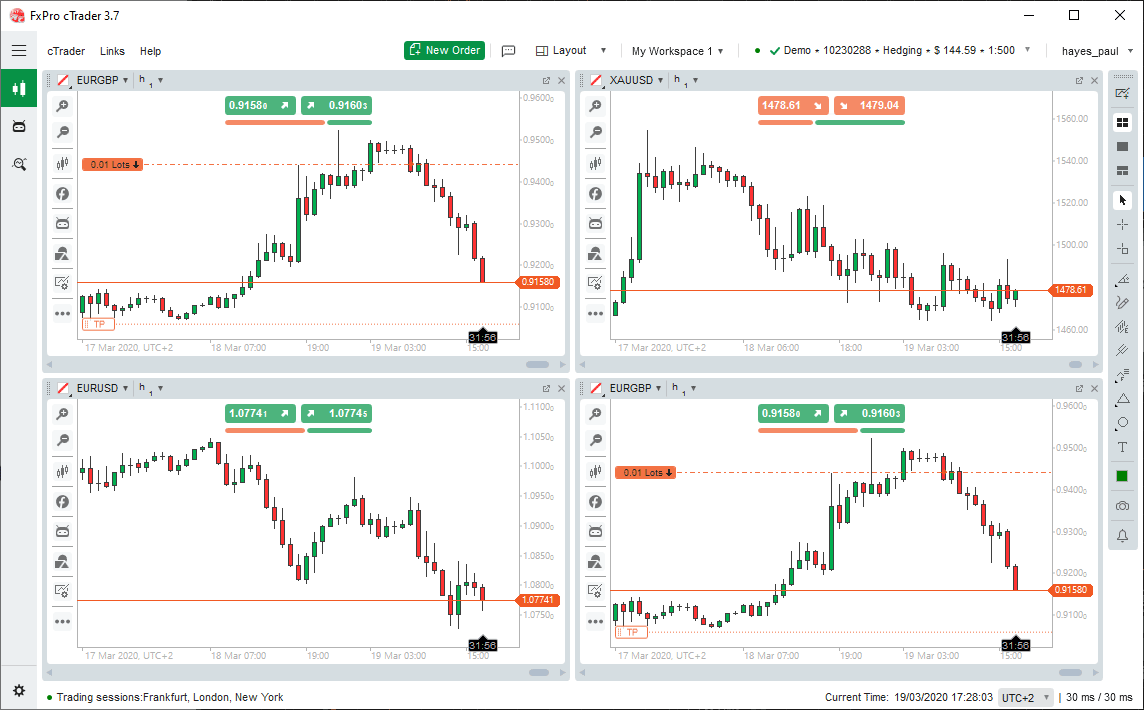
If you use multiple chart layouts — like single-chart for analysis and multi-chart for monitoring — F3 lets you cycle through them instantly.
Great for traders who monitor several markets but analyze one chart at a time.
These two features are among the fastest ways to move around cTrader. Many traders don’t use them, yet they cut your chart navigation time dramatically.
Press Spacebar on any chart and a small search box appears. Type a symbol, timeframe, indicator, or template… and press Enter.
Examples:
It’s the quickest way to switch symbols without touching your mouse.
When your cursor is on the timeframe toolbar, you can use:
This way you can male multi-timeframe analysis much easier, especially when you jump between H1 → M15 → M5 quickly during setups.
Clean charting is a big part of trading. These shortcuts help you move drawings between charts, tidy things up quickly, and manage your analysis without digging through menus.
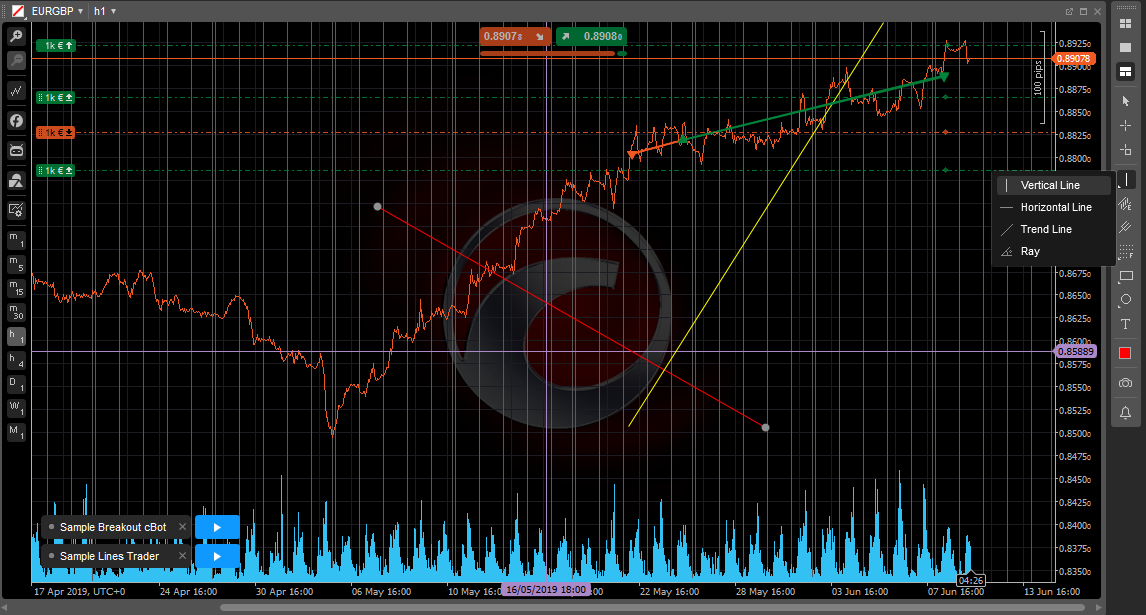
Every drawing tool in cTrader — trendlines, zones, Fibonacci tools, shapes — can be copied or moved just like text.
Examples:
This is extremely useful for multi-timeframe or template-based trading.
If your chart gets messy, press Ctrl + A to highlight every drawing at once.
You can then:
Perfect for “resetting” the chart while keeping your indicators intact.
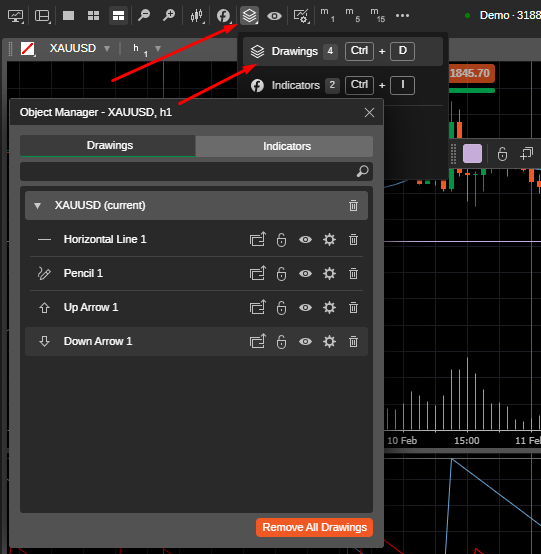
Object Manager lets you see every active drawing and indicator in a simple list. No more clicking around the chart trying to find a hidden line.
With Object Manager you can:
Your workspace is the “home base” of your trading. A few small layout habits make cTrader cleaner, faster, and easier to return to each day.
You don’t need one giant workspace filled with everything.
Instead, create separate workspaces such as:
Switching between them keeps your screen uncluttered and your analysis focused.
cTrader lets you jump between workspaces instantly.
This is useful when you’re monitoring one market while preparing an entry on another.
Example:
Track XAUUSD in your “Gold Workspace” → jump to your “FX Workspace” to check EURUSD → jump back.
No need to rearrange charts every time.
Once you get a layout you like (one chart or six charts), save it.
So, you can avoid spending 15 minutes rearranging windows after reopening the platform. Your charts, watchlists, and panel positions reload exactly as you left them.
These shortcuts help you place, adjust, and manage trades with fewer actions, especially useful during volatile sessions.
QuickTrade lets you buy or sell instantly from the chart using a one-click or two-click method. It’s one of the fastest ways to enter or exit a position when the market is moving quickly.
Why do traders like it:
Pro tip:
If you're new to cTrader, set QuickTrade to double-click mode to avoid accidental entries.
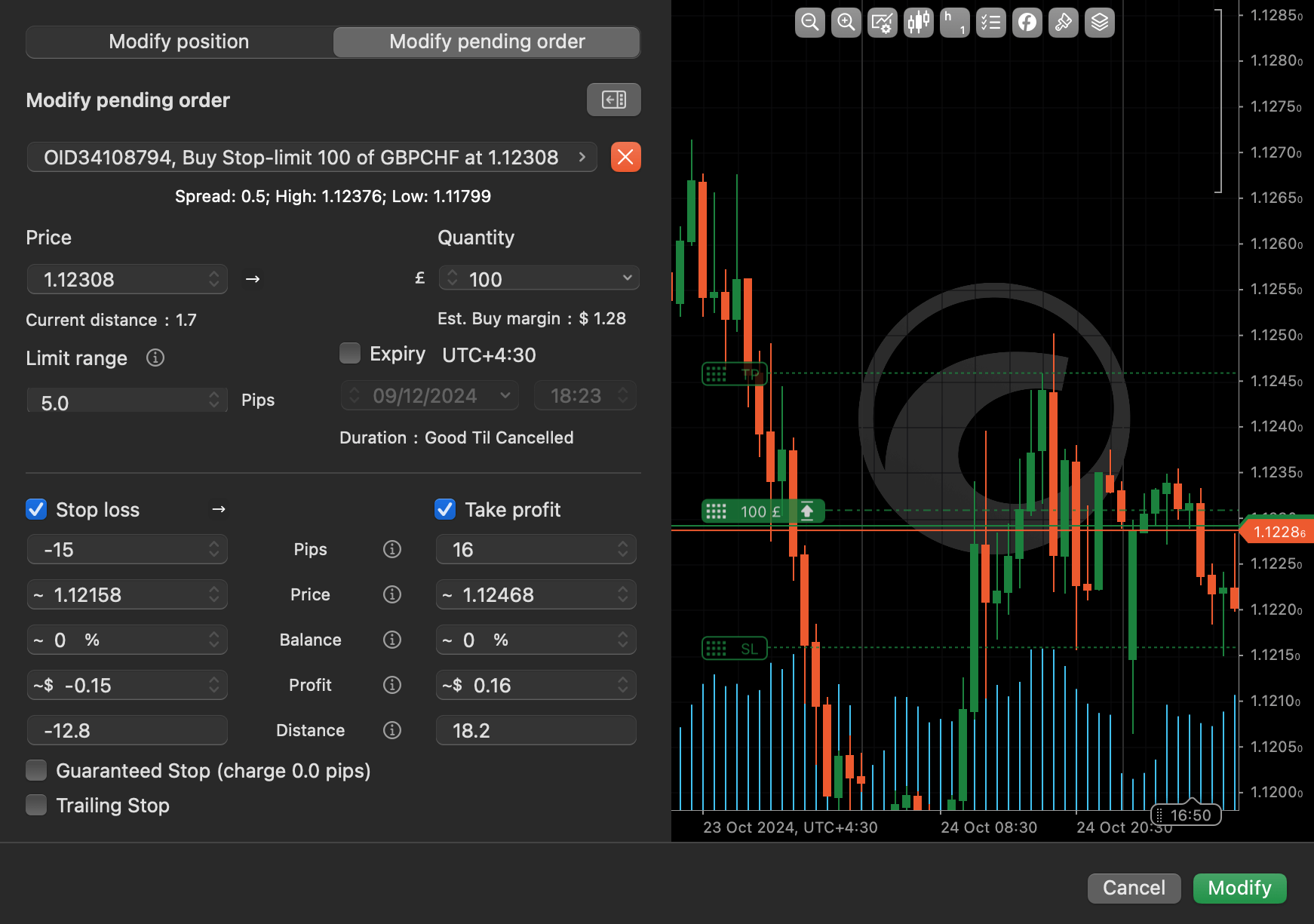
Many traders always click the “Buy/Sell” button to open the order ticket, but cTrader allows you to pull it up instantly. Pressing a dedicated order ticket hotkey (like F9 on some setups) makes this much faster during live trading.
Instead of opening the ticket and choosing “limit” or “stop,” you can place pending orders straight from the chart.
These quick settings save time and reduce missed opportunities.
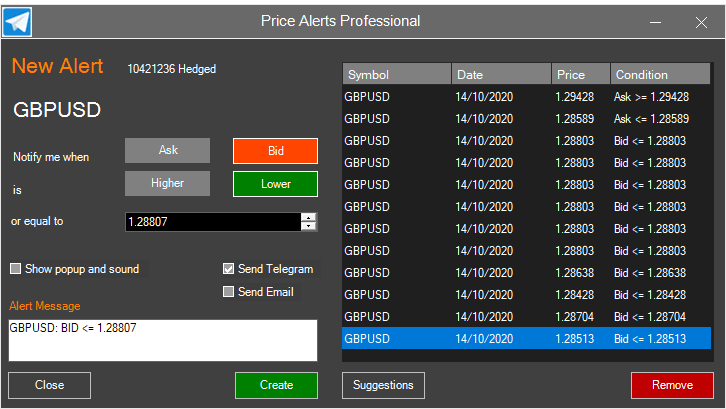
You don’t need to open the calendar or watchlist. Just right-click any price level and create an alert instantly.
This is useful when:
Once triggered, cTrader can notify you via:
Each workspace can have its own sound, alerts, and behavior settings.
For example:
cTrader’s built-in calendar lets you set alerts for high-impact events.
Useful for Gold, USD pairs, and indices during NFP, CPI, or FOMC days.
With one click you can:
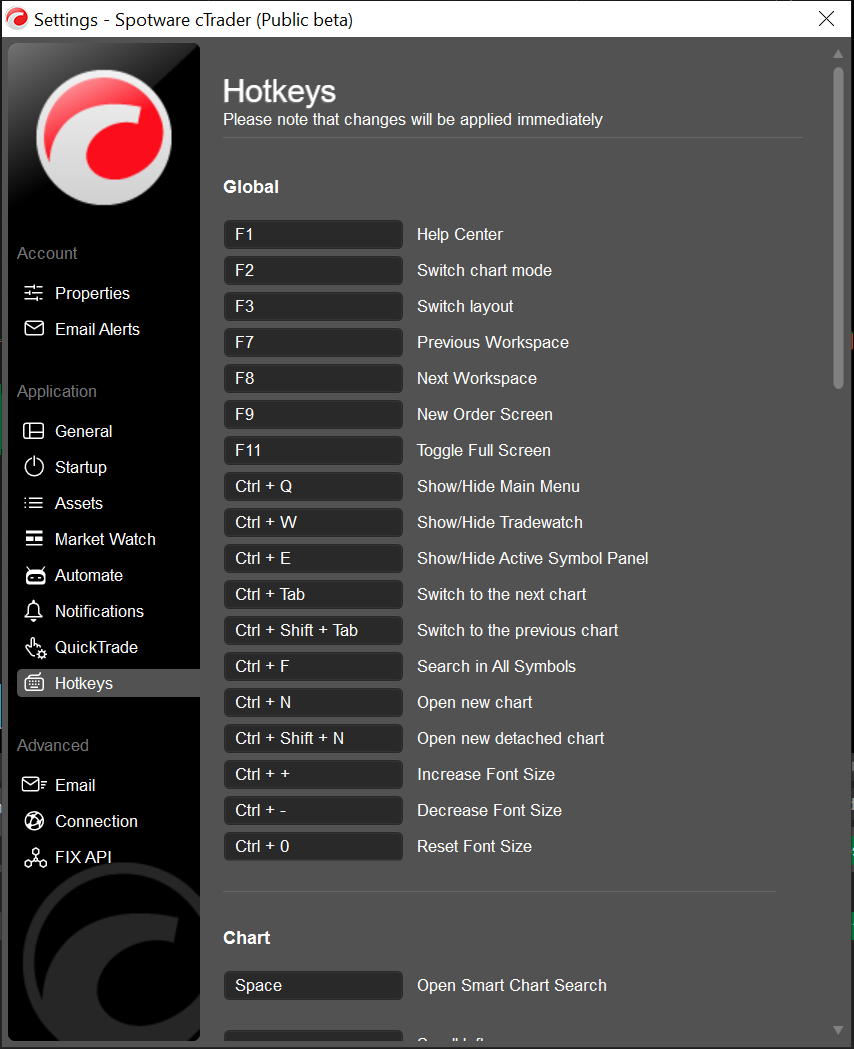
How do I view all available shortcuts in cTrader?
Open the platform settings and check the Keyboard Shortcuts or Hotkeys section. You’ll see a full list and, depending on the version, you can map some of them again.
Is Smart Chart Search available on every version of cTrader?
Yes, Smart Chart Search works on cTrader Desktop. Press Spacebar on any chart and you can jump to symbols, timeframes, indicators, or templates instantly.
Are QuickTrade one-click buttons safe for beginners?
They can be, but it’s better to use double-click mode until you’re fully comfortable. This prevents accidental entries during fast market movements.
Can I save different shortcuts for each workspace?
Shortcuts are global, but many related settings like alerts, layouts, and chart themes are workspace-specific. Most traders use different workspaces for different strategies.
How can I clean a messy chart without deleting indicators?
Use Ctrl + A to select all drawings, then delete or hide them. Indicators remain untouched, so your chart stays clean without losing your setup.
Sign up in seconds for free, access your platform, and start trading with ease.

 $200 Oil Scenario: The Chain Reaction Across Markets
What happens if oil hits $200? See the impact on global markets, sectors, inflation, and which industries could win or lose.
Detail Biggest Manipulations in Financial Market History
Financial markets have seen their share of manipulation over the years. Here are seven of the biggest cases in modern history.
Detail Petrodollar System: Why It Still Matters
Energy markets depend on supply routes, currency systems, and trade infrastructure determine prices, inflation, and financial stability across the global economy.
DetailThen Join Our Telegram Channel and Subscribe Our Trading Signals Newsletter for Free!
Join Us On Telegram!


